Turn a screen recording into a GIF for a bug report on Mac
A useful bug-report GIF shows the action that triggers the problem and the result that follows. Start with an existing screen recording, trim it to that sequence, then use Make a GIF in Lemora. The GIF loops without sound. There is no need to run Remove Sound before conversion.
Keep the reproduction sequence, then make the GIF
- Open the source recording and identify the shortest passage that shows both the triggering action and the unexpected result. Check for private information in the frames.
- Select the recording in Finder. With Lemora running, press Shift-Command-E and choose Trim on the Tools page.
- Keep the relevant passage at normal speed and save the trimmed copy. Leave enough time before and after the failure for someone else to understand it.
- Select the trimmed video, open the wheel again and choose GIF (Make a GIF) on the Convert page.
- Play the saved GIF and check its loop, text size and file size. Attach it to the report with written reproduction steps and expected versus actual behavior.
Results are saved beside the originals when folder access is available, or in Downloads/Lemora otherwise. Source files are never overwritten.
Where to find these actions
- Convert → GIF (Make a GIF): The first 30 seconds as a looping GIF, 480 pixels wide.
- Tools → Trim: Keep just the part you want, at normal speed or faster. Opens a window.
- Tools → Mute (Remove Sound): The same video without its sound.
What you get
A short, looping GIF without audio
Lemora uses up to the first 30 seconds of the selected clip, at 12 frames per second with frames limited to 480 pixels wide. Trim first to choose a different passage.
Works with: Existing screen recordings and supported video files, including MOV and MP4. Lemora converts the recording; this workflow does not record your screen.
Show one problem clearly
A long recording can hide the useful moment. Keep the click, keystroke or drag that triggers the issue and enough of the resulting state to make the failure visible. If the bug depends on several earlier steps, describe those in the report instead of making the reader watch a long setup. The attachment should support the explanation.
Trim before converting, not after the first 30 seconds
Make a GIF starts at the beginning of the selected video and uses no more than 30 seconds. If the failure happens two minutes into a recording, converting the original will miss it. Trim that passage into a new video first, then run Make a GIF on the trimmed copy. Shorter clips also tend to be easier to follow and share.
Check whether the interface text survives the smaller frame
The GIF conversion samples at 12 frames per second and limits the output width to 480 pixels. A full desktop may become too small to read. If necessary, use Crop and Rotate on a video copy to focus on the relevant area before conversion, or attach a still image alongside the animation. Preserve enough surrounding context to show where the issue occurred.
A silent GIF can still expose private information
GIF has no audio track, but every visible frame matters. Look for account names, notifications, document contents and values entered into fields. Trimming removes time from the recording; it does not obscure details that remain inside the selected passage. Review the exported loop itself before attaching it.
Use a video when motion, sound or detail matters
A GIF is not always the smallest or clearest attachment. If the issue involves audio, precise motion or fine text, share a suitable video copy instead. If you want a video without its soundtrack, use Mute (Remove Sound) on the Tools page. That is a separate alternative; it is unnecessary for a GIF because the GIF cannot contain sound.
Finish the report with words
State what you did, what you expected and what happened instead. Include the app version and relevant environment details in the report. A looping image can make the failure obvious, but it may not tell the developer which input or setting produced it. Pair the clip with steps another person can repeat.
Tested example: trim first, then convert
We used a generated six-second test-pattern video with a tone, not a recording of a real bug. Trim kept seconds 1–4, then Make a GIF used that result.
- The trimmed video duration was approximately three seconds.
- The GIF contained 36 frames at 480 × 300 pixels and no audio stream.
- The measured GIF duration was 2.88 seconds because GIF frame-delay rounding differs from the video timeline. Use video when precise timing matters.
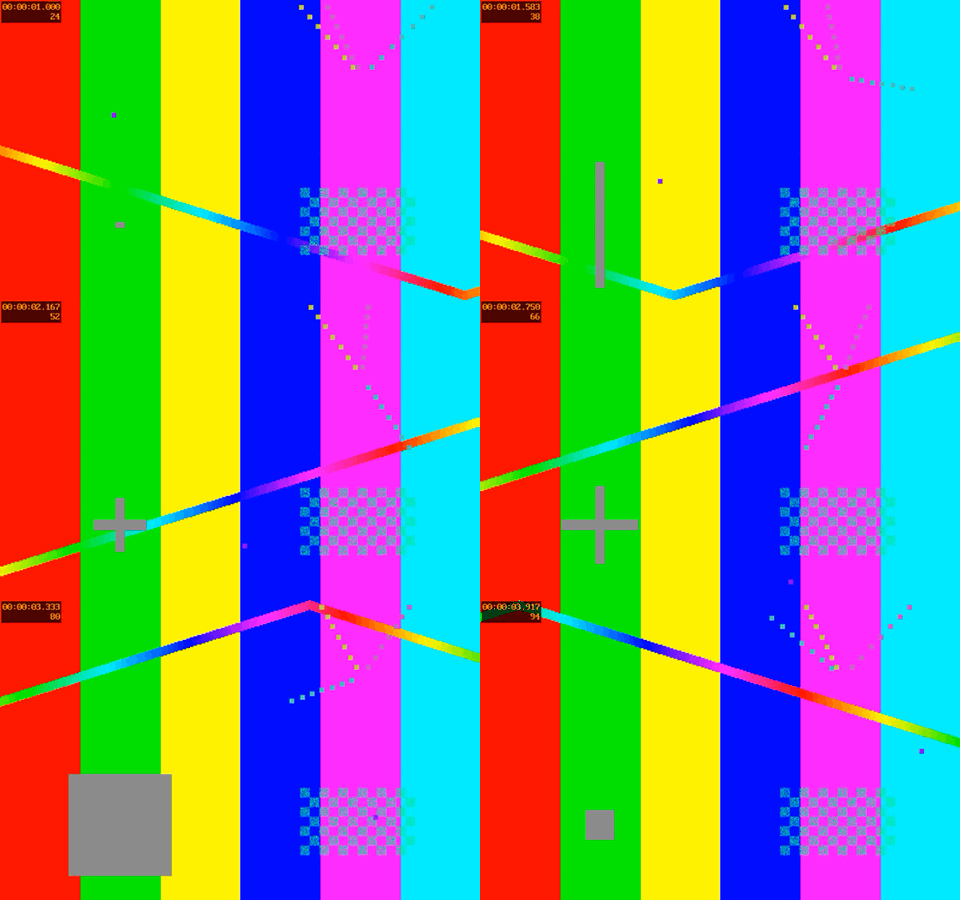
Tested 2026-11-15 with generated sample files in local debug build 1.0.0 (5) on macOS 27.0. This is not an App Store release test or a benchmark of arbitrary files.
Questions
Does Lemora record the screen for this workflow?
No. Start with a screen recording you have already saved, then use Lemora to trim and convert it.
Can I change the GIF's frame rate or width?
This action uses the current fixed settings: 12 frames per second and frames limited to 480 pixels wide. It does not present a width or frame-rate picker.
Why is the GIF larger than the original video?
A GIF is not guaranteed to be smaller than an efficiently encoded video. Shorten the clip or use a video attachment when the GIF exceeds the report's upload limit.
Try this workflow on your Mac
Download Lemora on the Mac App Store Free to try: every feature for your first 25 actions. macOS 15 or later.