Turn receipt photos into one searchable PDF on Mac
A folder of receipt photos is easy to collect and hard to search. Combine the pictures into a PDF, then add a searchable text layer so you can find a merchant or reference number later. In Lemora, this takes two actions: Make PDF on the images, then Make Searchable on the resulting document.
Build the PDF, then make its text searchable
- Save the receipt photos in a Finder folder. Open them briefly to check that each receipt is legible, complete and the right way up. Retake blurred pictures before combining them.
- With Lemora running, select the images in Finder and press Shift-Command-E. On the Convert page, choose PDF (Make PDF). Each image becomes a page in one document.
- Open the PDF and check that every expected receipt appears. If page order matters, use Organize Pages on the PDF's Tools page to arrange it.
- Select the PDF in Finder, open the wheel again and choose Searchable (Make Searchable) on the Tools page.
- Open the searchable result. Press Command-F to find a merchant name visible on a receipt, then copy a short passage and compare it with the photo.
Results are saved beside the originals when folder access is available, or in Downloads/Lemora otherwise. Source files are never overwritten.
Where to find these actions
- Convert → PDF (Make PDF): One page per image. Several images become one PDF.
- Tools → Searchable (Make Searchable): Read scanned pages and add hidden text, so you can search, select and copy.
What you get
One PDF with searchable receipt pages
Each selected photo becomes a page. A second action adds recognized text for search, selection and copying; it does not create an expense spreadsheet.
Works with: Receipt photos saved as JPG, PNG, HEIC or other supported image files.
Group receipts the way you will retrieve them
Choose a useful boundary before making the PDF: a trip, a project or a month, for example. A document called trip-receipts-2026-11.pdf is easier to recognize later than an automatically generated filename. Keep unrelated batches separate if combining them would make review harder. Lemora creates the file; you decide the filing system.
A readable photo matters more than another OCR pass
Lay the receipt flat, include its edges and avoid shadows across the print. Long receipts may contain small text that looks adequate in a thumbnail but becomes difficult to read when opened. Check the merchant, transaction date, line items and total in the photo before conversion. OCR cannot reliably recover text that was never captured clearly.
Check search on more than the first receipt
Sample receipts from different parts of the PDF, especially those printed faintly or photographed under different lighting. Search for a merchant name and try copying a total. If search misses a word, look at the visible page before assuming the receipt is absent. Recognition can misread characters, punctuation and numbers.
Keep the picture as the reference
The searchable layer helps you locate and copy information. It does not verify a transaction amount or categorize an expense. Compare important copied values with the visible receipt, and keep the source photos if you may need to rebuild a page. This workflow produces a document archive rather than a structured ledger.
Share the final document deliberately
Receipt photos can include names, addresses and payment details. Review the pages before sending the PDF, and confirm that the recipient should receive every receipt in the batch. Combining unrelated receipts into one file can disclose more than you intended. The PDF creation and text recognition run locally on your Mac.
Tested example: two generated receipts
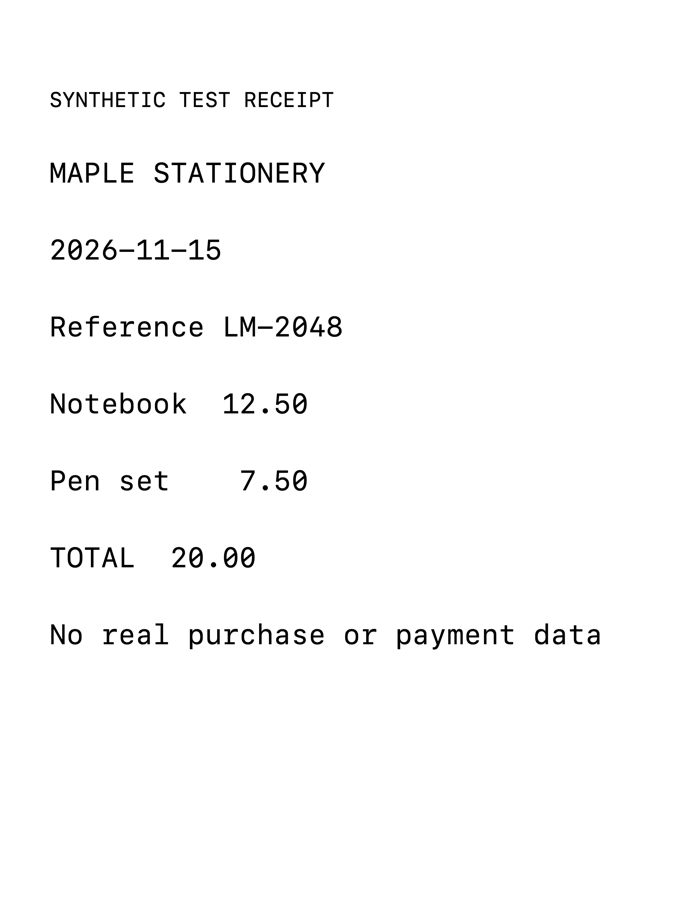
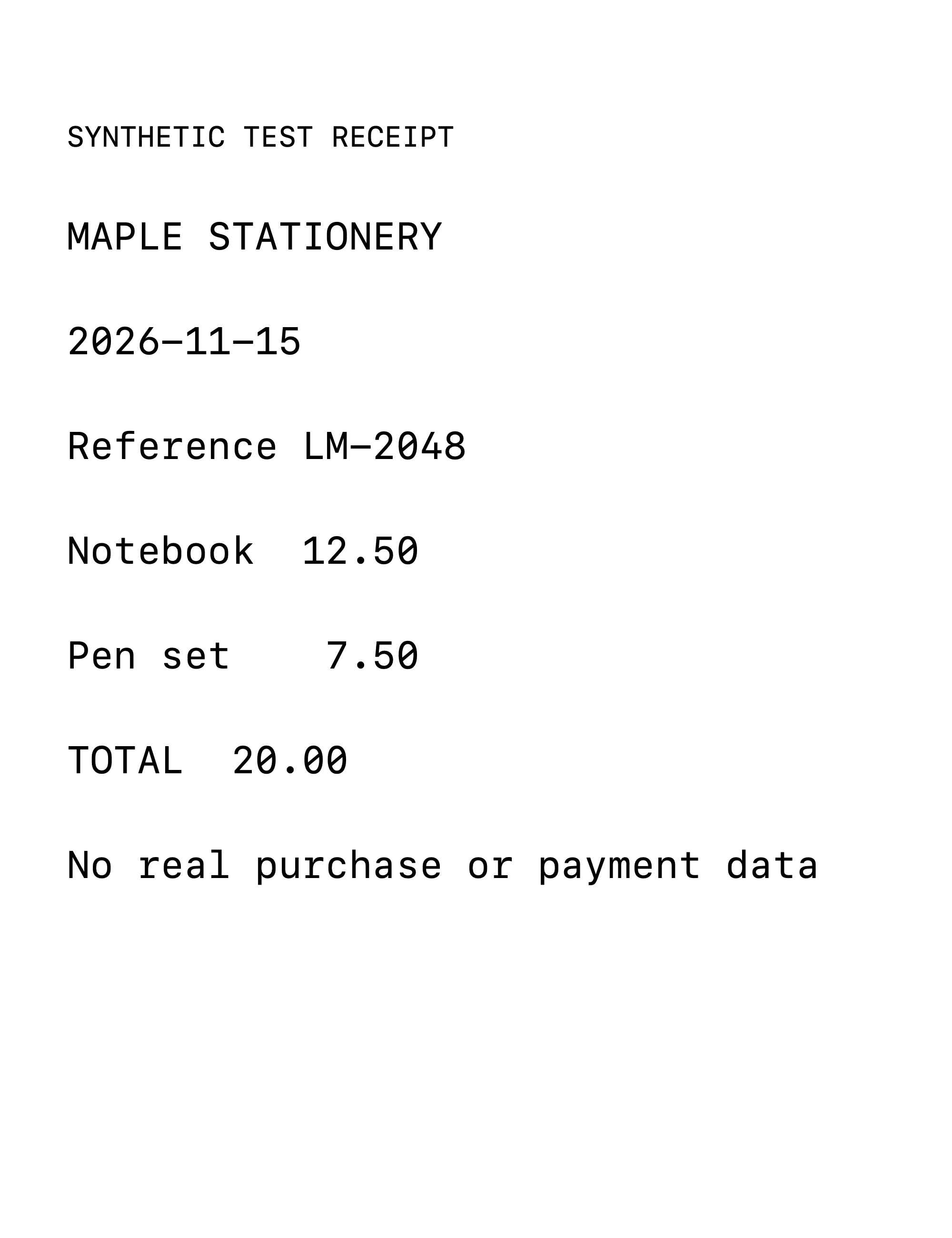
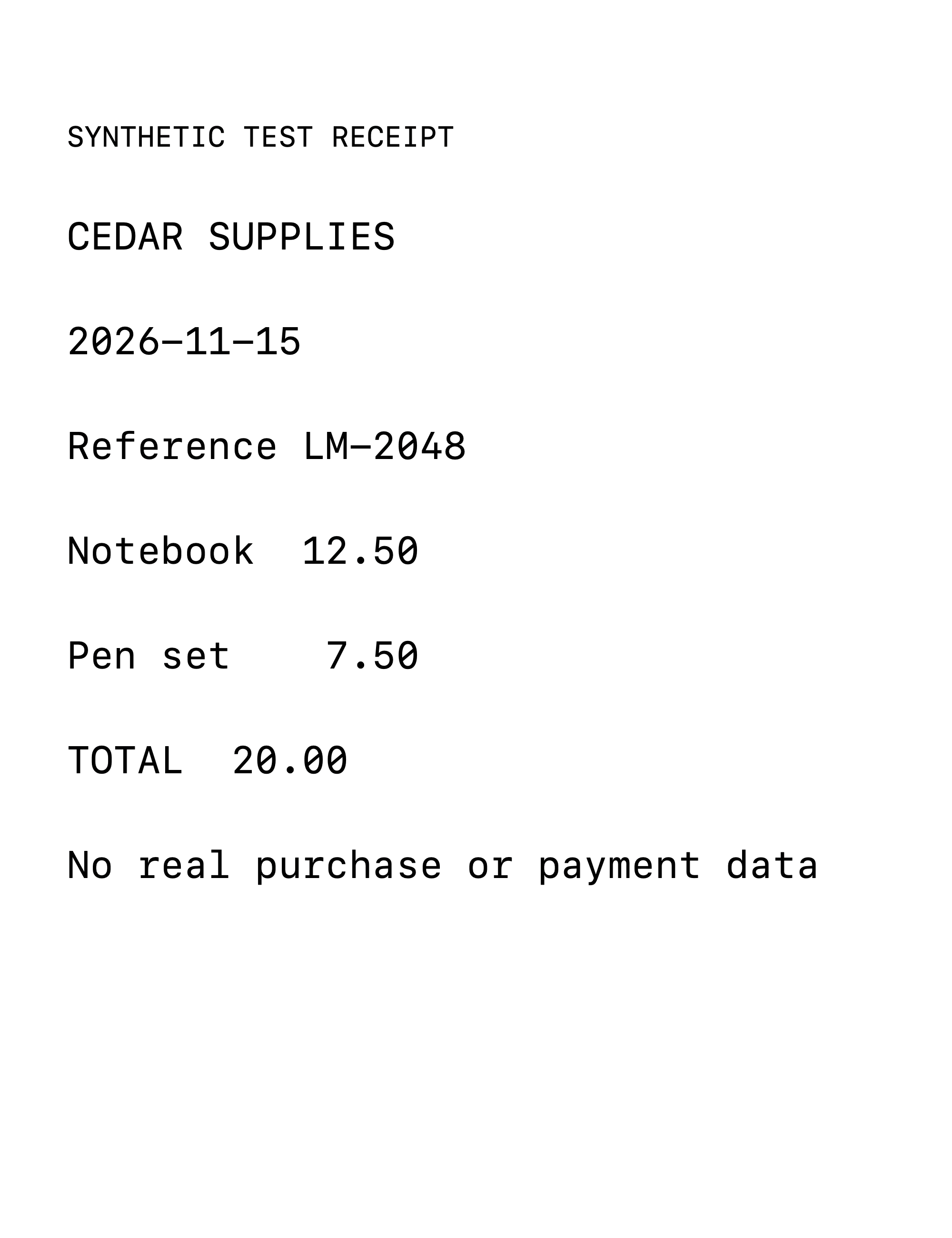
These receipts contain invented merchants and amounts. We combined the PNGs into one PDF, then ran Make Searchable on that PDF.
- The combined image-only PDF had two pages and no selectable text.
- Make Searchable reported two recognized pages.
- PDFKit found MAPLE STATIONERY and CEDAR SUPPLIES in the saved text layer. Recognition of these clean samples does not establish accuracy on difficult receipt photos.
Tested 2026-11-15 with generated sample files in local debug build 1.0.0 (5) on macOS 27.0. This is not an App Store release test or a benchmark of arbitrary files.
Questions
Can I search the PDF before running Make Searchable?
Make PDF creates pages from the pictures. Run Make Searchable afterward to add the recognized text layer, then verify search in the saved result.
Does this extract receipt totals into Excel?
No. It creates a searchable PDF. Expense extraction and categorization are different tasks, and a receipt archive should not be treated as a verified spreadsheet.
Can I keep one PDF per receipt instead?
Yes. Run Make PDF on each photo separately, then Make Searchable on the PDFs. Selecting multiple images together combines them into a single PDF.
Try this workflow on your Mac
Download Lemora on the Mac App Store Free to try: every feature for your first 25 actions. macOS 15 or later.