Combine CSV exports and remove duplicate rows on Mac
Overlapping exports can leave you with several CSV files and repeated rows. In Lemora, Merge combines the files into one table; Remove Duplicates then removes repeated whole rows from that result. Before merging, confirm that the files use the same columns in the same order. This workflow appends rows rather than matching records by an ID.
Check the columns, merge, then remove repetitions
- Inspect the header and sample rows in every CSV. Confirm that each column has the same meaning and position across the files. Keep the originals as a reference.
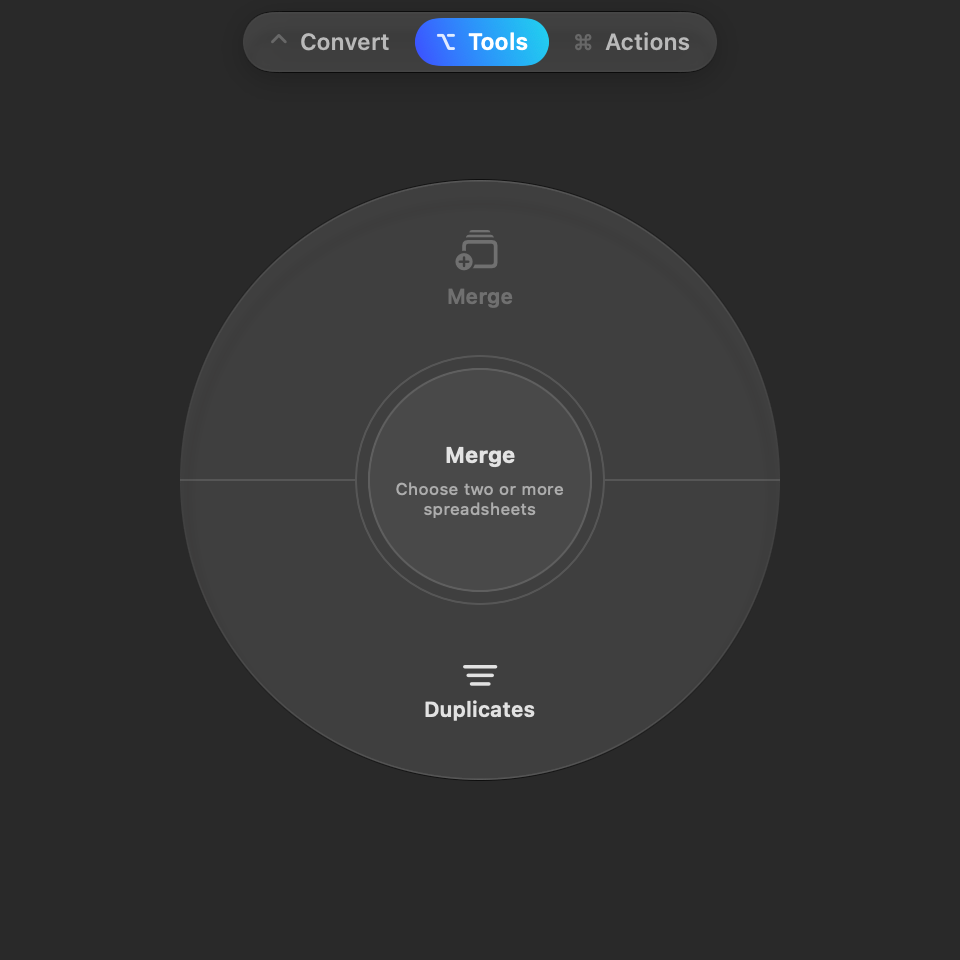
- Select at least two CSVs in Finder. With Lemora running, press Shift-Command-E and choose Merge on the Tools page.
- Open the merged CSV and check the boundaries between exports. Confirm that headers, identifiers and values are still in the intended columns.
- Select the merged file in Finder and open the wheel again. On the Tools page, choose Duplicates (Remove Duplicates).
- If a cleaned copy is created, compare its row count and sample records with the merged file. If no duplicate rows are found, Lemora leaves the merged result as it is.
Results are saved beside the originals when folder access is available, or in Downloads/Lemora otherwise. Source files are never overwritten.
Where to find these actions
- Tools → Merge: Stack several tables into one, in the order you chose them. Matching headers appear once.
- Tools → Duplicates (Remove Duplicates): Delete rows that repeat an earlier row. The header stays.
- Convert → XLSX (Convert to Excel): An Excel workbook. Every sheet is kept; numbers stay numbers.
What you get
One combined table, with exact repeated rows removed
Merge appends the input rows. Remove Duplicates keeps the first occurrence of each whole row and writes a cleaned copy when repetitions are found.
Works with: Two or more CSV exports with a header row and matching column positions. Merge also accepts supported spreadsheet workbooks.
Matching headers do not mean automatic column mapping
Merge appends rows in their existing order. If one export uses Name, Email and another uses Email, Name, the second file's values will not be rearranged to match. Reorder the columns in a spreadsheet editor before merging. A later header identical to the first is omitted; a different header may remain as a row in the combined table.
What counts as a duplicate row
Lemora compares every cell in a row after ignoring spaces at the ends of cells and empty cells at the end of the row. It keeps the first occurrence and removes later matches. A repeated header row is removed too. Differences in capitalization, punctuation or a nonempty cell still make rows different; this is not fuzzy matching.
A repeated ID with changed values stays
Consider two exports containing the same customer ID. If the later export has a new address, the rows differ and both remain. Remove Duplicates does not choose the newest record, merge fields or enforce uniqueness in a selected column. Use a spreadsheet or database workflow with explicit rules when you need one current record per ID.
Identical rows are not always unwanted records
Decide what repetition means in your data before removing it. Two valid events can have the same visible values if the export omits a unique identifier or time. Whole-row matching cannot tell an accidental repeated export from two real occurrences. Preserve the merged file and review the reduction rather than assuming every removed row was a mistake.
Check counts and data types before continuing
With matching headers, the merged data-row count should equal the sum of the source data rows. Review the cleaned count separately. When opening the result in a spreadsheet app, inspect identifiers with leading zeroes, dates and long numbers: the receiving app may interpret CSV text as numbers or dates. Choose XLSX on the Convert page if you need an Excel workbook, then check that output too.
For workbooks, Merge uses the first sheet
When you include XLSX or another supported workbook format, Lemora reads the first sheet of each file for merging. It does not combine every worksheet into one table. Select sources with the intended table on the first sheet, or prepare CSV exports of the sheets you actually need.
Tested example: two overlapping exports
Both CSVs use id, name and amount columns. One row appears in both source files.
- Merge produced one header and four data rows.
- Remove Duplicates removed one repeated row, leaving one header and three data rows.
- Running Remove Duplicates on the already-unique sample reported “No duplicate rows found” and wrote no cleaned copy.
Tested 2026-11-15 with generated sample files in local debug build 1.0.0 (5) on macOS 27.0. This is not an App Store release test or a benchmark of arbitrary files.
Questions
Does this join tables by a shared key?
No. Merge stacks rows. It does not join columns by customer ID, email address or another key.
Does merging two CSVs produce CSV?
Yes. When the inputs share a supported writable format, Lemora keeps that format. Mixed formats use Excel as the fallback.
What if Remove Duplicates produces no new file?
Lemora writes a cleaned copy only when it finds repetitions. A report of no duplicate rows means you should continue with the merged file.
Try this workflow on your Mac
Download Lemora on the Mac App Store Free to try: every feature for your first 25 actions. macOS 15 or later.